To view recent orders that were placed on your website, choose the View Orders option under the Order Menu item.
By default you will see a list of all orders placed on your website within the last two weeks.
You can choose one of the filters on the upper section of the screen to refine the orders either by date, order status, courier, etc.
In addition, you can enter a specific order ID (starts with GE, followed by 9 digits and the country code), and click the Find and View button to enter the Order Details screen relating to that order. Alternatively, you can switch the radio button to Tracking Number and search for an order according to the tracking ID of the courier.
On the lower section of the page you will see the list of orders that matches your selection. Click the order number in orange, found on the left side, to enter the Order Details screen.
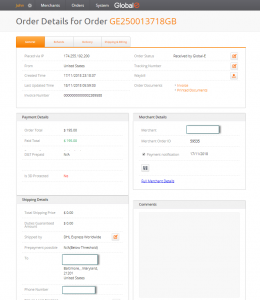
The Order Details screen consists of four tabs: General, Refunds, Delivery and Shipping & Billing.
General – contains most of the information about the order. In the upper section you will find information regarding the country and IP address that the order was placed from, as well as its time of creation, current status, tracking number (with a link to the shipper’s portal) and links to the order’s documents that can be printed.
The section below describes the amount that the customer paid in their own currency, including payment method and duties and taxes information. Below, you can view the shipping details with information about the shipper, shipping charges, destination address and tracking number when available. To the right of the shipping details section is the comment box where you can add and save your comments regarding this specific order/customer. Alternatively, the comments box displays errors from the DHL API, which indicates that there is something wrong with the shipping address or a technical issue with the interface.
In the lower section of the screen is a table with the products that were ordered, number of units and sale price. You can view each attribute of the product (size, color, material…) when hovering your mouse over the pencil icon. In this section you can also amend the order’s products when changes are required, cancel the entire order or create a return for a certain product. Click the relevant link to learn more about how to perform the procedure.
Refunds – contains all the refunds and returns that were made for this order. Follow these procedures to learn more about creating a refund or creating a return.
Delivery – contains information about the shipping service for that order: the chosen shipper, the rate for the home destination and the tracking number on the shipper’s portal, once it is available.
Shipping & Billing – displays the billing address of the customer (cannot be edited) and the shipping address for the order that can be edited until the order is ready to be dispatched. The shipping address also contains a link to Google Maps which can help to solve issues with the address or postal code. Follow the link to learn more about editing the shipping address.