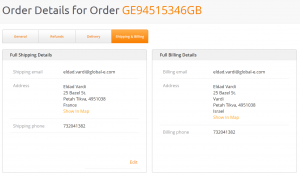
There are some scenarios when you may need to change the shipping address that was provided by the customer. This can happen:
- When the customer requests to change the destination of the order.
- The shipper’s API returns an error as something went wrong with processing the address. This may be due to an out-of-date postal code, misspelled address or missing information.
To change the shipping address, click the Shipping & Billing tab in the Order Details screen. With an API address error (in this case, the order will change its status to Failed Transfer to Shipping) you may want to try clicking the Show in Map link that will locate the address using Google Maps. This can help with some issues like an incorrect postal code, spelling mistakes in the street or city name, typos, etc.
In order to edit the current address, click the Edit button below the shipping address. The address then become editable so you will be able to change the relevant item. Click Save to save your changes.
Please note, that it’s not allowed to change a destination country once an order is placed.
When clicking the Save button, the system will ask for your confirmation:
- Cancel – to cancel the operation.
- Save – to save your changes.
- Save and Re-ship – click this option when you have already issued an airway bill for this order (as part of the fulfillment process). Clicking this option will save the changes and issue a new airway bill with the updated address. Please make sure to replace the old airway bill with the updated one before the order is picked up by DHL.