
As part of the integration process you were provided with a customer facing Returns Portal, where customers can create an RMA (for additional information about our customer-facing Return Portal – please refer the its guide)
It is also possible to create an RMA on the customer’s behalf via the Global-e Merchant Portal.
Note: this button will only appear once the order is dispatched to the customer and constitutes one of the following statuses – Dispatched to Customer or Delivered to Customer
To create an RMA:
- Click Create Return at the bottom of the Order details General tab:
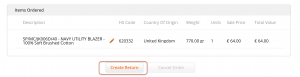
- This will open a Returns Portal in CS Admin view in a new browser window.
The relevant order will be pre-populated:
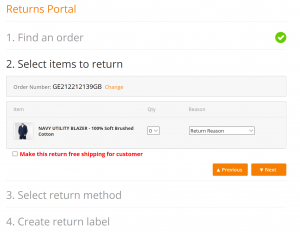
- Select a product that needs to be returned, a quantity to be returned and a reason for the return
- If you wish to create a free pre-paid return for a customer, select Make this return free shipping for customer

- Click Next to select a return shipping method
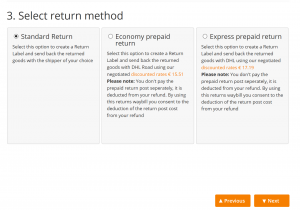
- Select a return shipping method and click Next
- An RMA will be created. The customer will receive the RMA and the return instructions directly to the email address used when placing the order. The RMA and the return instructions will also download to your working station if you want to send the customer a copy.