If you are using your own (non-Global-e) carriers for shipping your orders (or even if only some of the carriers that you are using are your own) – we have created a new procedure for updating these orders within our Merchant Portal, which will also provide your customers with the correct tracking link for the order.
Please follow the procedure outlined below after these orders have been picked up from your warehouse. It is very important that you do not run this process prior to pick up, as once done, your customers will be notified that their order is on its way, and if the pickup is delayed, it may cause a longer waiting time for your customers.
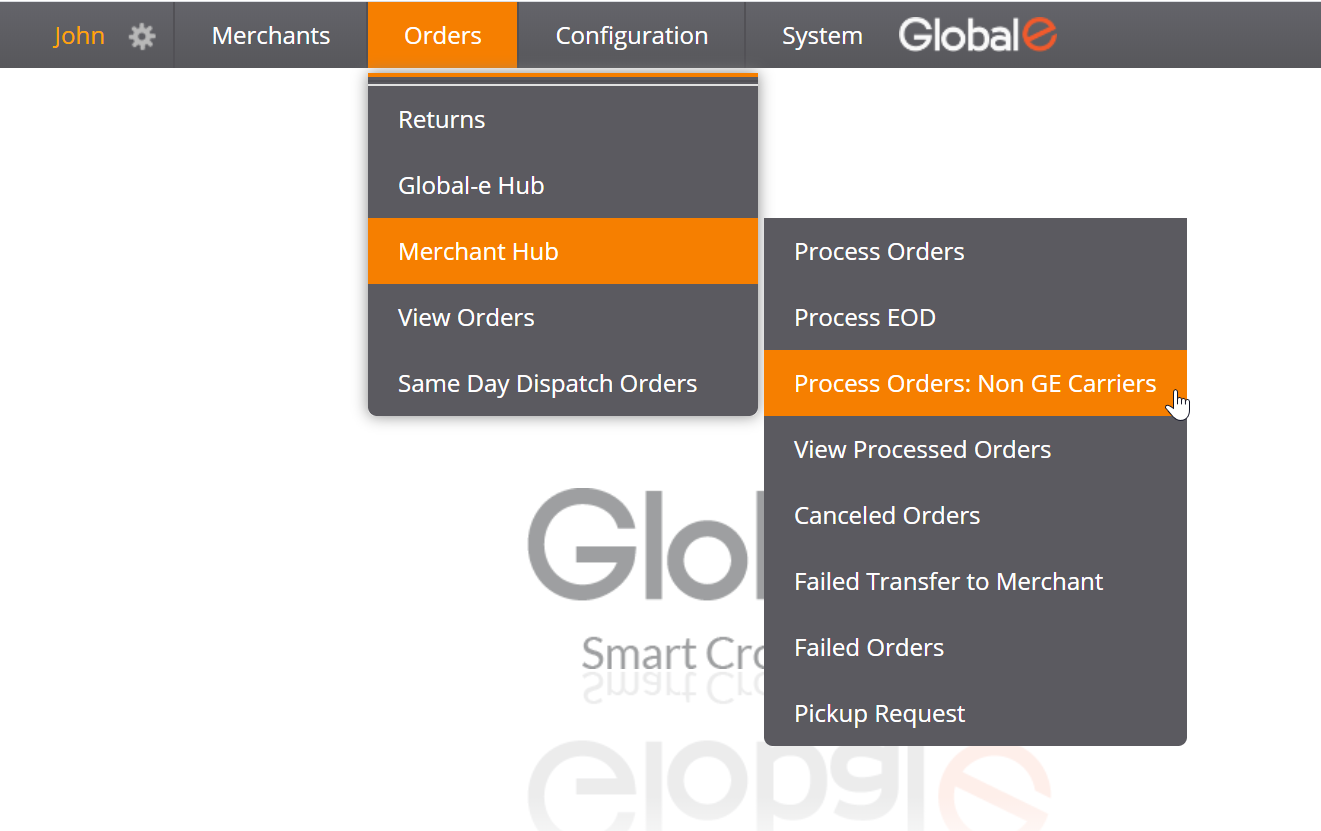
- In the Merchant Portal, go to Orders -> Merchant Hub -> Process Orders: Non GE Carriers
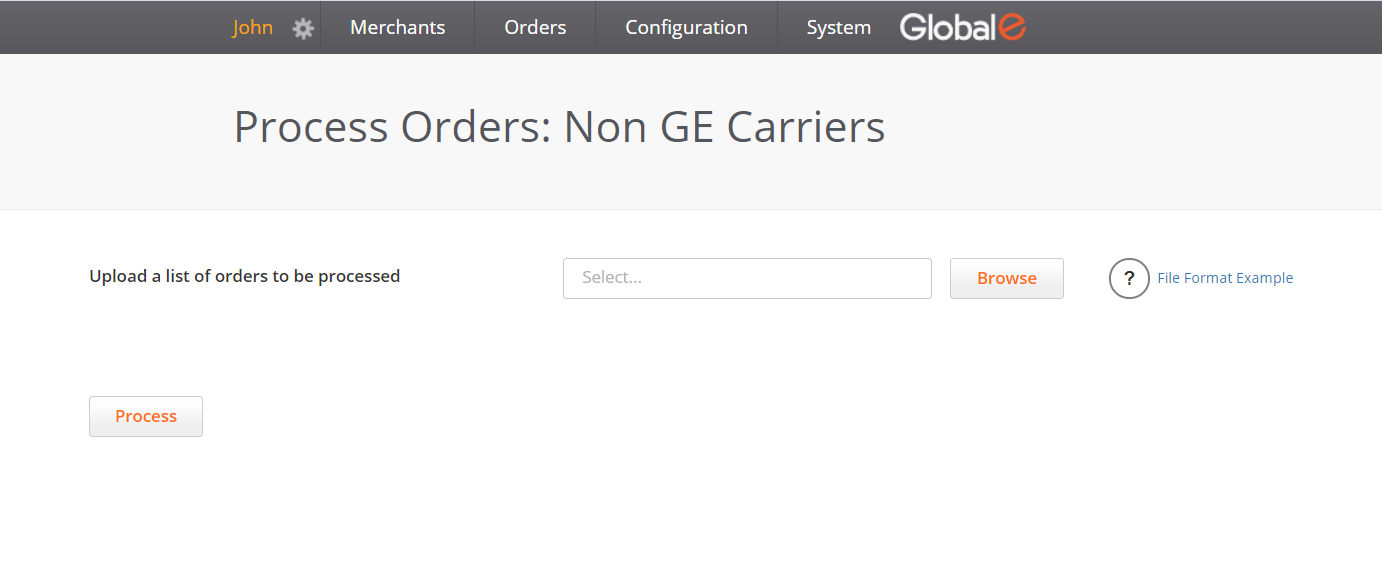
- Prepare a list of the relevant Order IDs (that are shipped with your own carrier) along with the correct tracking ID for each order. A sample file is available on the screen (on the right side) for reference and download.
- Once your file is ready, upload it to the Merchant Portal
- Click the Process button
Please note: you can use either a Global-e order ID (starts with GE) or your e-commerce platform ID within the file. Make sure that each order is represented in the file in a single line (identified by either the GE Order ID or your e-commerce platform ID) and has its own tracking ID.
Duplicated orders will be ignored, and if the same tracking ID repeats itself in two or more orders, the system will ask you to correct the file.
Once you have successfully completed this process, each customer will receive an email notification that the order is on its way, including the tracking link and ID, enabling them to check the status of their order.