
Users with Merchant CS Admin permissions can create new refunds by clicking Add Refund
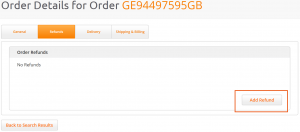
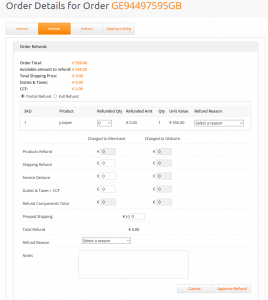
This will open a new refund screen:
IMPORTANT – The refunds interface should only be used for orders that were already dispatched to the customer. To cancel settlement or refund one or more “out of stock” items, please use Amend Order before the order is processed in the Global-e Merchant Portal and shipped to customer.
Global-e monitors all of the refunds and rectifies the failed or pending ones.
At the top of Order Refunds the following data will be shown:
- Order Total – total paid by the customer for the order
- Available amount to refund – the amount that can be refunded. If there were previous refunds made on the order, the available amount to refund will be lower than the order total
- Total Shipping Price – shipping price paid by customer
- Duties & Taxes – duties amount paid by customer
- CCF – customs clearance fees paid by customer
If the order needs a full refund, the Full Refund button should be selected. This will prepopulate all of the relevant refund input fields below.
Otherwise, for a partial refund, keep the Partial Refund button selected and populate the refund components:
- Products Refund – to create a refund for products, select the quantity in the Refunded Qty. drop-down menu in the products list and Refund Reason. The Products Refund field will be populated according to the quantities selected.
- Shipping Refund – to create a full or partial refund for shipping, enter the amount in this field
- Service Gesture – in some cases merchants need to refund customers for amounts not associated with products, shipping fees or duties & taxes. In this case, use this field
- Duties & Taxes + CCF – to refund for duties & taxes fees, enter the amount in this field. IMPORTANT: Customs authorities do not generally refund for duties & taxes paid. Refunding customers for these fees is at the merchant’s discretion and costs
- Refund Components total – this field will automatically calculate and show all of the above refund components
- Prepaid Shipping – to deduct the cost of prepaid return shipping, enter the amount here. The refund cost shown to the customer in the Returns Portal is shown under Return Requests at the top of this page
- Total Refund – this field will show a total refund amount that will be transferred to the customer’s original payment method
- Refund Reason – use this drop-down selection to define the reason for the refund
- Notes – enter refund note if relevant