
If you would like to replace an item, instead of refunding the customer, you can use the replacement functionality by clicking Replace Order Products.
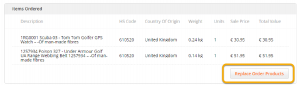
This button will only appear once the order is dispatched to the customer and constitutes one of the following statuses, Dispatched to Customer or Delivered to Customer
- After clicking Replace Order Products you can choose the items that will be replaced by clicking on a checkbox next to the relevant item. Multiple items can be selected
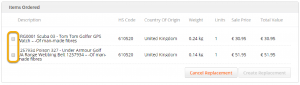
- Choose the items to be replaced and click Create Replacement to create the new replacement order. If you want to cancel the operation, click Cancel Replacement
- In order to complete the new replacement order, your website will open and you will be redirected to the exact URL of the item you want to replace. If the original product’s URL is no longer valid, the main website URL will open and you will need to search for the item you want to provide as a replacement:
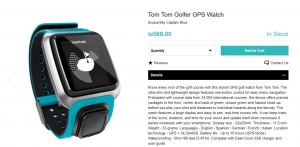
- Add the items you wish to send as a replacement to the cart. Make sure to select the relevant product attributes according to their exact specification (size, colour etc.). You can add more than one item to the replacement order.
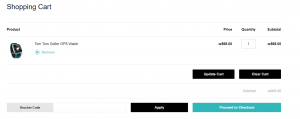
- Go to the checkout page to complete the replacement order. You will see a similar checkout page as your customers see with a few changes:
- Customer’s billing and address details will be prefilled according to the details of the original order. You can change these details if required
- You will not be required to enter any payment information
- The pay/submit button will be replaced with Place Replacement Order
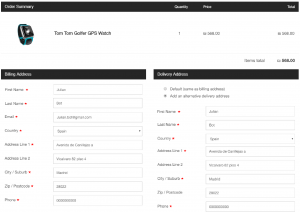
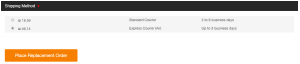
- In order to complete the replacement order:
- Check the personal details of the customer and change them if required
- Choose the shipping method that will be used to send the replacement order (It can be a different one to that used for the original order)
- Choose to prepay duties and taxes when applicable. Please note: If D&T are required and not prepaid, the customer may be asked to pay them to the shipper
- Click Place Replacement Order to create the replacement order
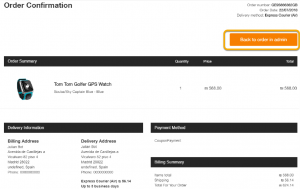
- The order confirmation page will confirm the creation of the replacement order. At this stage the customer will receive an email notifying him that his replacement order was created.
The order will be added to your e-commerce platform as a new order, but indicating that it is a replacement order and not a regular order. If you don’t want to include replacement orders in your current e-commerce platform sales reports, some modifications may be required by your system integrator.
- Click Back to order in admin to return to the original order in the Global-e admin
- The items that were replaced will be flagged on the original order, and will also link to the replacement order for this item
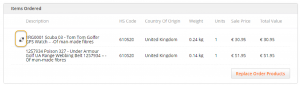
- The new replacement order will be flagged as a replacement order